
Reading Comics via WebDAV: Setting Up, Remote Access, and Troubleshooting on Synology and fnOS

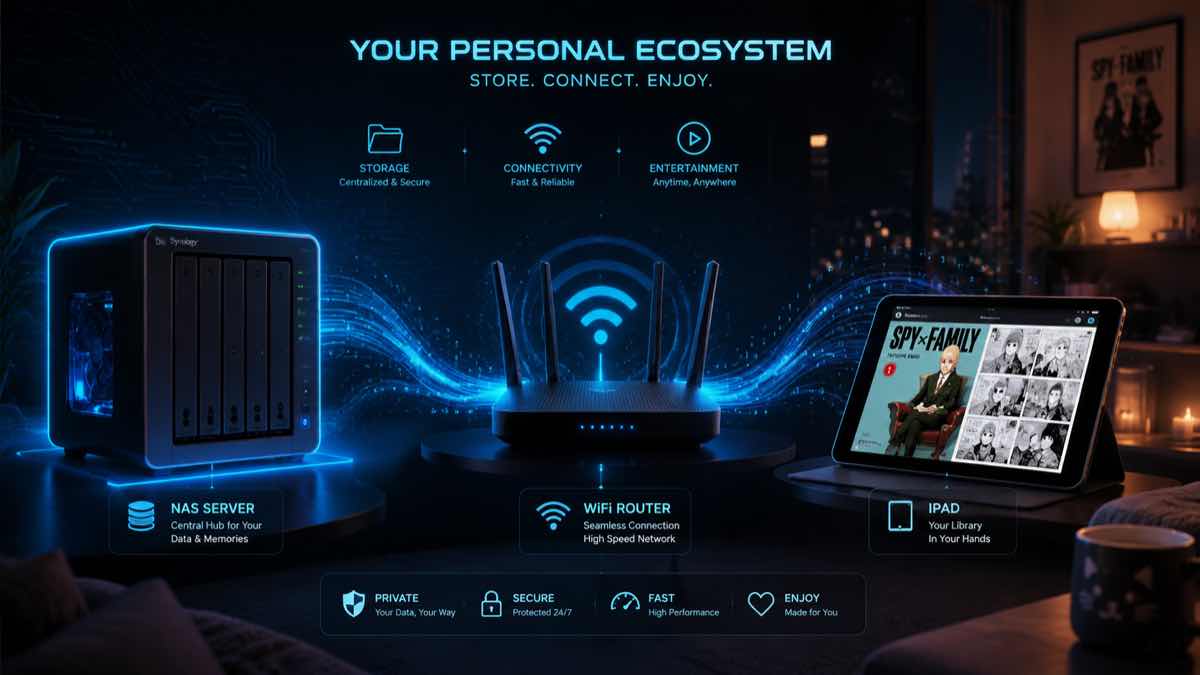
Store hundreds of gigabytes of comics on your NAS and flip through them directly on your iPhone or iPad. You only need to complete two steps: enable WebDAV or SMB sharing on the NAS, then fill in the address, port, and account details correctly in your reader app.
First, two prerequisites: First, this guide assumes you already have comic files on your own hard drive; the NAS only handles sharing, and readers like Manga Capsule only open files—they do not provide online comic resources. Second, mounting network bookshelves and streaming reading in Manga Capsule are Pro features; subscription or one-time purchase terms follow the in-app membership interface.
Below, I'll walk through the actual operational sequence: first choose the protocol, then explain where to find and how to fill in the switches on Synology DSM and fnOS, and finally provide remote access solutions and a troubleshooting table.
Choose the Protocol First: SMB or WebDAV
When adding a network bookshelf, you'll see SMB and WebDAV. The decision rule is simple: If you only read on your home LAN and prefer minimal hassle, use SMB; if you plan to connect from outside your network or encounter cross-platform compatibility issues, choose WebDAV. Both protocols can run simultaneously on the NAS without conflict, and you can create separate bookshelves in the reader for different scenarios.
| Comparison Dimension | SMB | WebDAV |
|---|---|---|
| Default Status | Enabled by default on almost all NAS devices | Requires manual confirmation (toggle on fnOS, install package on Synology) |
| Configuration & Speed | Minimal configuration, usually better speed on LAN | Requires remembering port numbers (default 5005/5006), sufficient for LAN |
| Permissions & Cross-Platform | Directly uses system user permissions; occasional SMB version negotiation issues | Based on HTTP, mature implementation on iOS, Android, macOS, Windows |
| External Network Security | Port 445 must never be exposed to the public internet; for external access, only use with VPN/tunneling tools | With a valid HTTPS certificate, more secure than directly exposing file-sharing ports |
Also, set your expectations for "streaming reading." After connecting to the NAS, on-demand reading (loading content near the current page first, prefetching a few pages as you flip, without waiting for the entire file to download) depends on file format, compression method, and network conditions:
- ZIP / CBZ: Can fetch only the needed pages by byte position, best suited for reading directly from the NAS.
- EPUB / PDF: Have their own page-based schemes; whether PDF supports on-demand reading depends on the file's internal structure and reading conditions.
- RAR / CBR: Do not support page-by-page streaming; must be downloaded and extracted locally first.
- MOBI: Cannot be read page-by-page remotely; must be downloaded entirely to the device first.
SMB and WebDAV browse real folders, so it's recommended to organize folders by title (e.g., Manga/One Piece/, Manga/Jujutsu Kaisen/), which will directly map to bookshelves after connecting. If you want automatic metadata scraping for covers and poster walls by series, you can deploy Komga via Docker using the OPDS protocol; see Komga Manga Server iOS Guide.
Complete Setup Steps for Synology DSM
Synology doesn't have a built-in comic app, but the approach is actually the most standard: enable sharing services and let the iOS client handle reading. Incidentally, when using only SMB or WebDAV for comics, there's no difference between Synology ARM entry-level models (like DS223j, DS124) and Intel x86 models (like DS224+, DS423+); only if you plan to install Komga via Docker must you choose an x86 model. For differences between systems, see How to Choose a NAS System.
1. Prepare a Shared Folder and Dedicated Account
Create a shared folder (e.g., Manga) in DSM, and place a small CBZ and a CBR file for verification. Do not use the admin account directly; create a dedicated standard user with read-only permissions to the Manga directory. First, verify from your computer that you can list files with this account, and note the Synology LAN IP (e.g., 192.168.1.100, visible in the top-right of the DSM desktop or in your router's device list).
2. Enable WebDAV Server (Ports 5005 / 5006)
Synology's WebDAV is a separate package that requires manual installation:
- Log into DSM, open Package Center, search for WebDAV Server, and install it.
- After installation, open WebDAV Server, and check Enable HTTP and Enable HTTPS.
- Note the port numbers: default HTTP is 5005, HTTPS is 5006 (check the actual display in the package page).
- The LAN WebDAV address is
http://192.168.1.100:5005(HTTPS example:https://nas.example.com:5006).
Note: Installing the package doesn't mean the service is running—make sure to check the boxes in the package interface; also, don't confuse the DSM admin backend port with the WebDAV port.
3. Confirm SMB Switch Location
Synology SMB is enabled by default, so most users don't need to change anything. Just go to DSM → Control Panel → File Services → SMB tab, confirm that "Enable SMB Service" is checked, and verify shared folder permissions.
4. What to Fill in the Reader
Connect your iPhone or iPad to the same LAN Wi-Fi as the Synology (avoid guest networks), open Manga Capsule, tap "+" in the bookshelf sidebar → "Add Network Bookshelf":
- Choose WebDAV: Fill in a recognizable "Title" (e.g., "Synology Comics"); set "HTTPS" according to the protocol; fill in the "Server URL" as
192.168.1.100, "Port" as5005or5006(don't pairhttpwith HTTPS); enter the Synology system username and password, tap "Connect", then select theMangafolder in the directory and tap "Save". - Choose SMB: Fill in "Title", "Server" as
192.168.1.100(only fill in port if custom), enter the Synology username and password, tap "Connect". You don't need to guess the shared folder name in the initial form; after connecting, selectMangain the directory selection page and tap "Save".
Note: The account and password here are the Synology system user credentials, not the Manga Capsule login password, nor the Synology cloud account.
Complete Setup Steps for fnOS
fnOS is free and doesn't require specific hardware. Although there is currently no official comic or ebook app, its file-sharing switches are even more straightforward than Synology's—no package installation needed, just toggle in system settings.
1. Enable WebDAV and Confirm SMB
- Go to fnOS System Settings, find File Sharing Protocols.
- Switch to the WebDAV tab and turn on the toggle.
- Default ports are also HTTP 5005 and HTTPS 5006, usually no need to change.
- The page will automatically generate connection addresses for Mac and Windows—copy them for reference.
Where is SMB? It's on another tab in the same page: System Settings → File Sharing Protocols → SMB. fnOS SMB is usually enabled by default; just check the status.
2. What to Fill in the Reader
In Manga Capsule's sidebar, tap "+" → "Add Network Bookshelf", choose WebDAV or SMB. Fill in four pieces of information: Server address (LAN internal IP, e.g., 192.168.1.xxx), Port (WebDAV: 5005 or 5006), Username and Password (the system account credentials used to log into the fnOS backend, case-sensitive), then select the comic directory after connecting and save.
If you want to install Komga on fnOS for metadata scraping, do not install the Komga from the fnOS app store—that version is outdated and never updated, and it doesn't even support OPDS v2. The correct approach is to deploy the official image via the fnOS Docker management interface using docker-compose (port 25600), then in Manga Capsule select Komga and enter http://your-fnOS-IP:25600 to auto-complete.
As for other domestic NAS brands, switches and ports differ: ZSpace's WebDAV default port is 8080 and it has a built-in comic app; UGREEN enables it in UGOS Pro sharing settings. For details, see ZSpace NAS Comic Reading Guide and UGREEN NAS Comic Reading Guide.
LAN Direct Connection vs. Remote Access
Get LAN Working First, Avoid Isolation and IP Changes
For initial setup, make sure to test within your home LAN using the internal IP. Two things to watch: first, guest Wi-Fi or wireless isolation can prevent your iPad from reaching the NAS; second, the NAS IP may change after reboot, so it's recommended to assign a fixed IP to the NAS in your router.
Why Can't You Rely Solely on Synology QuickConnect for Remote Access?
Many people try to fill in their Synology QuickConnect ID directly into the reader when away from home, only to fail:
- QuickConnect cannot be used directly as a WebDAV or SMB address. Synology's official WebDAV troubleshooting documentation clearly states this limitation: it primarily serves the DSM interface and official apps; third-party readers' SMB and WebDAV typically don't route through it. Being able to log in remotely via official apps doesn't mean the reader can reach it.
- QuickConnect servers are not in mainland China, so speeds are slow, causing noticeable lag when continuously loading comic images; also, black Synology (hacked) devices can't use official services.
For domestic systems, fnOS's built-in free remote access is sufficient for comics (paid speed-up available), ZSpace's free remote is the fastest, and UGREEN's built-in remote is average. But if you want to use standard SMB/WebDAV in the reader, here's a comparison of mainstream remote solutions:
| Solution | Difficulty | Speed | Notes |
|---|---|---|---|
| Tailscale | Minimal | Depends on network | Most recommended. Install the same app on NAS and iPad, log into the same account, connect via virtual IP |
| ZeroTier | Easy | Depends on network | Similar mesh networking tool, also simple to configure |
| QuickConnect | Minimal | Slow | Synology-specific; file-sharing protocols usually don't work |
| Public IP + Port Forwarding | Complex | Fastest | Not recommended for beginners; highest security risk |
Mesh Networking, HTTPS, and Security Baseline
For remote comic reading, Tailscale is the most recommended. Log into the same account on the NAS (install the package on Synology, use Docker or command line on fnOS) and your iPhone/iPad, confirm both are online and access rules allow, then fill in the NAS's Tailscale virtual IP in Manga Capsule to access the original SMB/WebDAV services. Actual speed depends on your home upload bandwidth, mobile network, and relay.
Security baseline: Do not expose unprotected sharing services (especially SMB port 445 or plaintext WebDAV) directly to the public internet. If you can use mesh tools, avoid opening ports; if port forwarding is necessary, only use HTTPS WebDAV with a valid certificate (don't rely on ignoring certificate errors as a long-term solution) plus a read-only dedicated account. Also keep the system updated—fnOS had a serious security vulnerability recently, but the official update was quick, so upgrade promptly.
When offline or without network, you can long-press a cover in the mounted directory and tap "Download" to save to the local bookshelf. Verify offline (caching a few pages doesn't mean the whole volume is offline; ensure enough space for download and extraction). For the process, see iPad with NAS Comic Reading Tutorial.
Common Error Troubleshooting Table
| Error or Symptom | Check First | Check Next |
|---|---|---|
| Connection Timeout | Is the NAS online? Did the internal IP change after reboot? Are you on the same Wi-Fi? | Are you on guest Wi-Fi or wireless isolation? Are WebDAV/SMB toggles enabled? Is the port filled as the admin backend port instead of 5005/5006? Is the firewall allowing it? |
| Authentication Failed | Did you enter the NAS system local username and password (not Manga Capsule or cloud account, case-sensitive)? | Does the dedicated account have read permissions for the shared folder and WebDAV/SMB? |
| Shared Folder Not Found | Is the folder name case-correct? Did you select the correct directory after connecting? | Does the dedicated account have permission to list that directory? Are the file extensions supported? |
| Can Connect but Can't Open Files | Check format boundaries: ZIP/CBZ can be read on-demand, RAR/CBR must be downloaded and extracted locally, MOBI must be downloaded to the device first, PDF/EPUB depends on structure | Download the same file locally or on a computer and open it to check for corruption, encryption, or special compression |
| Works at Home but Not Outside | Did you use QuickConnect ID or remote web login address directly as the WebDAV/SMB address? | Is Tailscale/VPN connected? Is the NAS online in the admin console and rules allow? For HTTPS forwarding, check certificate validity and domain match |
| Slow Speed | Did you open a CBR/MOBI that requires full download, or is the volume too large or specially compressed? | At home, did you accidentally use remote relay instead of LAN IP? Outside, speed is limited by home upload bandwidth, mobile network, or relay nodes |
When troubleshooting SMB, you can use the iPad's built-in "Files" app → Browse → Connect to Server for an independent check: if the system can't connect either, check network and NAS; if only the reader reports errors, go to Manga Capsule's "My → Contact Us" to report version, protocol, format, and screenshots (never send passwords, tokens, or full private server access information).
Related Reading
- NAS Comic Reader Guide: SMB vs. WebDAV selection and page-by-page reading principles
- Synology NAS Comic Reading Guide: WebDAV Server installation, model selection, and remote solutions
- fnOS Comic Reading Guide: One-click WebDAV and Komga deployment pitfalls
- Komga Manga Server iOS Guide: Docker deployment of Komga and OPDS v2 connection
- NAS Comic Guide Overview: Summary of four major NAS brands and self-hosted services