
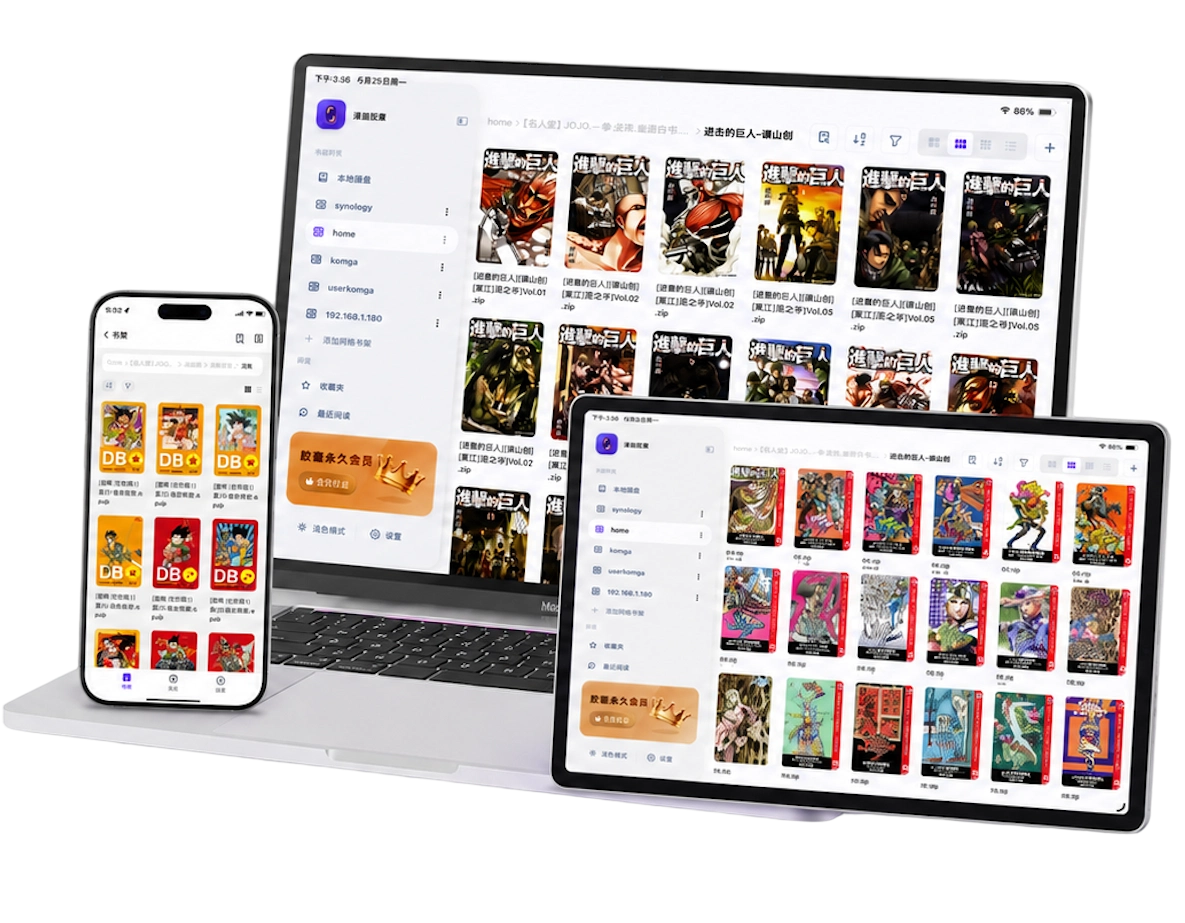
Choose where your comics live
On your iPad: import a few CBZ, CBR or PDF files when you want to read on a flight, commute, or anywhere with unreliable Wi-Fi. The app keeps the imported copies in local storage. Your collection uses device space, but reading does not require a live connection. Follow the local comic reader guide for import methods and offline checks.
In iCloud Drive: import files through the system Files picker to create local copies, or add an iCloud Drive folder as a connected shelf. A connected folder follows the files in iCloud; it is not the same as importing them. Manga Capsule downloads mounted iCloud files before reading, so make sure the download has completed before going offline.
On a NAS or home computer: add an SMB or WebDAV shelf instead of copying your entire collection to the iPad. Compatible files can load over the network as you read. Format, server behavior and connection speed determine the waiting time. The NAS comic reader guide explains setup and download exceptions.
In Dropbox or another supported cloud service: choose a service that appears in the app's Add Network Shelf menu. You can also download a file in the service's own app and import it through Files. Do not assume every cloud service has a direct connection; a Files import is a useful fallback.
Match the reader to your file formats
Manga Capsule supports CBZ/ZIP, CBR/RAR, PDF, EPUB, MOBI, AZW3 and common image files. Image folders are also useful for individual chapters. For Kindle-style formats, use compatible, DRM-free files; changing the extension does not remove protection.
The format also affects how the book opens:
- CBZ/ZIP: convenient for numbered comic images. Compatible remote archives can load in parts, so you do not normally need to download the entire book first.
- CBR/RAR: supported, but remote files download and extract before reading. Local files still need extraction and enough free space.
- PDF: useful for scans. NAS PDFs can load remotely when compatible; encrypted or incompatible files may need a full download. PDFs on supported cloud drives download before reading.
- EPUB: useful for image-based books, with page order described inside the file. A damaged internal structure can still cause problems.
For step-by-step archive import, see opening CBZ and CBR on iPhone or iPad. The CBZ/CBR guide also explains why renaming a RAR file to ZIP does not convert it.
Set up the iPad screen for each comic
For a Western comic, start with left-to-right page turns. For Japanese manga, choose right-to-left. In landscape, a two-page view can make a print-style book feel more natural; in portrait, a single page often makes small lettering easier to read.
Wide-image splitting turns a scanned two-page image into readable single pages. Merge next page joins two separate images when they belong to one spread. These solve different problems, so check the art before applying a setting to the whole book. See splitting and merging comic spreads.
For webtoons, choose top-to-bottom scrolling. On a large iPad, Narrow Scroll can keep the artwork from becoming uncomfortably wide. For excessive white borders, try margin cropping, then check that speech bubbles and captions remain visible. The webtoon guide and PDF margin tutorial cover these cases.
Get started with one book
- Install Manga Capsule and open the bookshelf.
- Tap + → Import File for a comic in Files or iCloud Drive. Use Import Folder for an organized local collection, or WiFi Transfer to send files from a computer on the same network.
- Open the book. Choose the reading direction and a page-turn or scroll mode that fits the artwork.
- For NAS access, use Add Network Shelf, choose SMB or WebDAV, connect, and select the shared folder. Start with one small CBZ to confirm the setup.
- For travel, import or download the books you need, wait for completion, and reopen them with Wi-Fi and cellular data disabled.
Free or Pro? Local reading has a free allowance of 5 books per week. Pro removes the weekly reading limit and includes network shelves, SMB/WebDAV, direct cloud access and streaming. Current plans and regional prices appear in the app's purchase screen. Try representative local files before choosing a plan.
Our iPhone and iPad comic reader comparison explains the different approaches to local files and server libraries.
Frequently asked questions
Does Manga Capsule come with comics or manga?
It is a file reader. Bring your own comics or connect a library you already have access to. For a subscription catalog, use the publisher or licensed reading service that provides it.
Can I use it without an internet connection?
Yes, with files fully saved locally. A cover appearing on a remote shelf does not mean the whole book is available offline. Check by reopening the downloaded book with networking disabled.
Can I read directly from a NAS?
Yes, with Pro and an SMB or WebDAV shelf. Compatible files load remotely, while CBR/RAR downloads and extracts first. Read the NAS setup guide before moving a large collection.
Should I convert every comic to PDF?
Usually there is no need. Keeping a supported original format avoids an extra conversion step. If your collection is mostly CBZ or CBR, start with those files and tune the reading settings.