Komga iOS Client? iPhone/iPad Connection to Komga Manga Server Solution (2026)

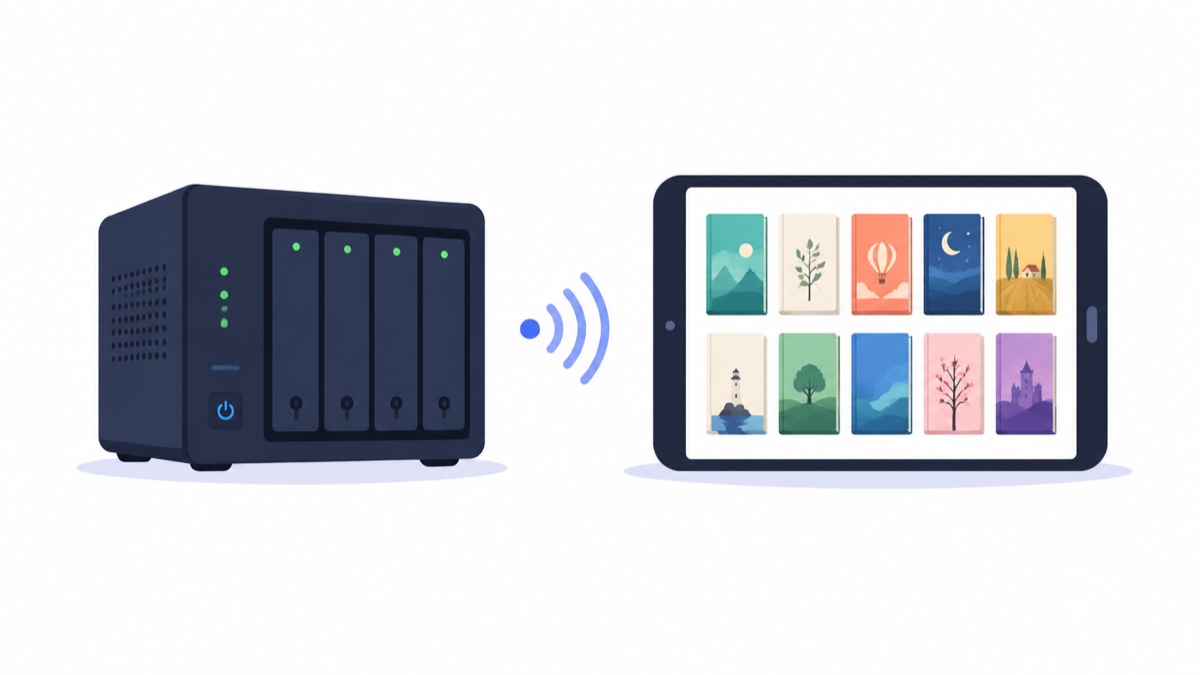
Komga iOS Client, iPhone/iPad Connection to Komga Manga Server Solution
You can use Komga's web reader on an iPad, or connect a compatible native reader to its catalog. Choose based on the file, layout and offline workflow you need.
There are two practical solutions: connect through OPDS protocol, or skip Komga and directly mount the underlying file directory. Both solutions are supported by Manga Capsule, explained below.
Solution 1: Connect to Komga via OPDS
Komga has a built-in OPDS catalog service, and any OPDS-supported reader can browse and fetch the library.
Configuration steps (using Manga Capsule as example):
- On the bookshelf page sidebar, add network bookshelf → select "OPDS(Komga)"
- Enter address:
http://your-Komga-server-address:25600(25600 is Komga's default port, change to your own if modified) - Enter Komga username and password, connect
- Library displays according to Komga's folder structure, tap to read
The benefit of this solution is preserving Komga's library organization (series, collections), suitable for users who have carefully organized metadata in Komga. Manga Capsule supports the new Komga with OPDS v2 protocol. If your Komga is too old, you'll need to update it.
Solution 2: Directly Mount File Directory (Recommended)
Komga essentially adds a management layer over your NAS manga folders. If your directory is already well-organized (folders by work), you can skip the Komga layer and directly mount the folder into the reader via SMB or WebDAV:
- On bookshelf page sidebar "Add Network Bookshelf" → "SMB" or "WebDAV"
- Enter NAS address and account, select manga root directory
- Folder structure directly maps to bookshelf, covers auto-generated
Why this is more recommended:
Direct folder access avoids depending on Komga's catalog scan. Both the connection route and server capabilities affect on-demand reading; OPDS does not universally require a complete download. Compatible CBZ/ZIP can load on demand, while RAR/CBR downloads and extracts first. Caches use local storage.
How to Choose Between the Two Solutions
| Comparison | OPDS Connect to Komga | SMB/WebDAV Direct Mount |
|---|---|---|
| Preserve Komga metadata/series organization | ✅ | ❌ Folder structure |
| Large file open speed | Requires fetching full file | ✅ Streaming instant open |
| Depends on Komga service online | Yes | No |
| External access | Both work (need port forwarding/inner network penetration, recommend HTTPS or VPN) | Same as left |
My suggestion: If the main home device is iPad, direct mount is enough; keep Komga service for desktop web and Android (Tachiyomi/Mihon family) use, they don't conflict.
FAQ
Q: Can apps like Paperback and Panels connect to Komga? A: Panels supports OPDS and can connect; Paperback requires installing extension sources. Chinese users should note that both have limited support for Chinese interface and vertical scroll mode.
Q: How to access home Komga/NAS while outside? A: Common methods are Tailscale/WireGuard networking (recommended, secure), or router port forwarding + HTTPS. After networking, just enter the internal address in the app as usual.
Q: Does Kavita, an alternative to Komga, also work with this solution? A: Yes. Kavita also provides OPDS interface, and the direct mount file directory solution is even independent of server software.
📥 Download Manga Capsule from App Store
🔗 Related Reading:
Pro requirement: Network shelves and streaming require Pro. Prices and monthly, yearly or lifetime options are shown in your regional storefront and in the app.