Read Comics from a NAS on iPad: SMB and WebDAV Setup

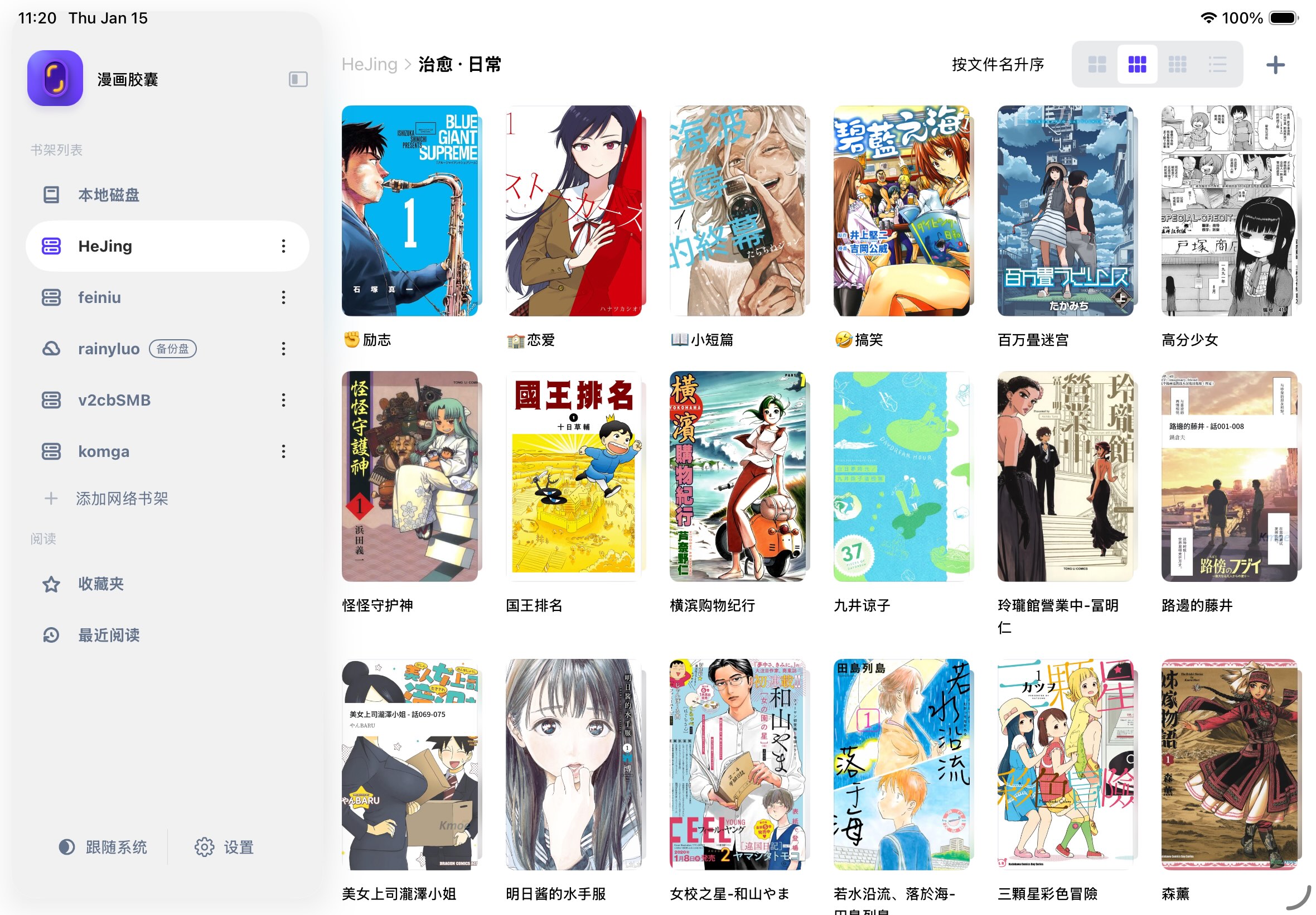
To read comics from a NAS on iPad, enable a file-sharing service on the NAS, then add that service as a network shelf in a compatible reader. Start with SMB on your home network. WebDAV is an alternative when your server provides a WebDAV endpoint. You do not need a separate library server just to browse folders of comics.
This tutorial uses Manga Capsule and a Synology example. The app's connection form and download behavior were checked against its implementation; NAS instructions are based on the official documentation linked below. Updated October 13, 2026. This is not a hands-on test of every NAS brand or a speed benchmark.
Before you connect
Have these ready:
- Your iPad and NAS on the same reachable local network for the first setup. Avoid an isolated guest WiFi.
- A shared folder containing your own comic files, for example
Comics, with a small CBZ to test first. - The NAS's local IP address or hostname, for example
192.168.1.100. This is an example, not an address you should copy unchanged. - A NAS account allowed to read that folder. A dedicated reading account with only the necessary permissions keeps the setup easier to manage.
- Manga Capsule installed, with local network access allowed when prompted.
Choose SMB, WebDAV or OPDS
| Connection | Choose it when | What you enter |
|---|---|---|
| SMB | You already share folders from your NAS on the LAN | NAS host, username/password and optional port; select the shared folder after connecting |
| WebDAV | Your server provides a WebDAV service | WebDAV URL, HTTPS setting, port if needed and credentials; select a directory after connecting |
| OPDS(Komga) | You run a managed catalog such as Komga | The server's catalog endpoint and credentials, not its SMB address |
For a Komga setup, use the separate Komga iOS connection guide. An NAS dashboard URL, QuickConnect link and WebDAV endpoint are not interchangeable.
Step 1: enable sharing on the NAS
Synology: SMB
In DSM, open Control Panel → File Services → SMB (the label can be SMB Settings in some versions), enable the service and apply your change. Confirm your reading account has permission for the shared folder. These controls are documented in Synology's SMB settings guide.
Find the NAS's LAN IP in its network settings or your router's client list. Test the same account from a computer if you are unsure about folder permissions.
Synology: WebDAV alternative
Install WebDAV Server from Package Center, enable the desired service and note its port. Synology's documented defaults are HTTP 5005 and HTTPS 5006; use the values actually configured on your NAS. For HTTPS, use a hostname and certificate your device can validate. Follow Synology's official WebDAV setup guide.
Other NAS systems
QNAP, UGREEN, TrueNAS and other systems use different menus and permissions. Look for their SMB/file sharing service, enable it and grant access to the comic share. Use WebDAV only if that model and installed software provide it. Do not assume any service is enabled by default or reuse a Synology port without checking.
The iPad connection steps below use the protocol and credentials, so they remain useful regardless of brand. Consult your system's current manual for its server-side menu labels.
Step 2: add an SMB shelf in Manga Capsule
- Open the bookshelf's source selector and choose Add Network Shelf. Select SMB.
- Enter a Title such as
Home comicsand the Server host such as192.168.1.100. - Enter your NAS Username and Password. Leave the optional port at its normal value unless your server is configured differently.
- Tap Connect. The app now lists the account's available shares; the share name is chosen at this step, not entered into a separate field on the initial form.
- Open your
Comicsshare and navigate to the desired directory, then tap Save. - Switch to that saved network shelf, open the small test CBZ and check its pages.
If the app discovers your NAS automatically, you can use that suggestion, but still verify the host and account. If it connects but shows no share, check permissions rather than repeatedly changing the reader's display settings.
Step 2 alternative: add a WebDAV shelf
- Choose Add Network Shelf → WebDAV.
- Give it a Title. Set the HTTPS switch to match the service you enabled.
- Enter the actual Server URL and port. For example, a Synology HTTPS setup might use
https://nas.example.comwith Port5006; use your own working address. If the URL already includes a port, keep the separate port field consistent. - Enter the account credentials, then tap Connect.
- Browse to the comic directory and tap Save. Open the same small test book.
A WebDAV endpoint may include a path on some servers; preserve the path your server documents. HTTPS certificate errors are addressed by using the correct hostname and trusted certificate, not by replacing the URL with a dashboard login link.
What streams, and what downloads first?
A compatible CBZ/ZIP on SMB or a suitable WebDAV server can load page data as you read. This reduces the need to fetch the entire archive before starting. It depends on the archive and server, and it still uses a local cache.
CBR/RAR requires a full local download and extraction before reading in Manga Capsule. Mounted iCloud files download before reading too, as do PDFs from some cloud sources and PDFs requiring local parsing. Neither a network shelf nor a large storage capacity removes this format limit. For an archive-heavy library, try a representative file first; if you choose to repack your own RAR books as ZIP/CBZ, keep the originals until the converted copies work.
Page size, compression, WiFi quality, server latency and cache state all affect opening and page turns. We do not promise identical speed to local reading or a fixed number of seconds.
Download a volume for offline reading
Select the book on the network bookshelf by long-pressing its cover, then use Download in the selection actions. Wait for completion and open the copy from the local bookshelf. Test with WiFi and cellular data disabled before leaving home.
If you only opened a remote book previously, do not assume every page remains available offline. A complete local download is the reliable workflow. Keep enough free storage, especially for extracted CBR/RAR files.
Read away from home
Once LAN access works, a private VPN such as Tailscale can make your NAS reachable remotely. Tailscale's NAS documentation lists platform support, and its Synology guide covers setup. Install it on the NAS and iPad, authorize the devices on your network, then use the NAS's Tailscale address in the reader while the VPN is connected. Access rules must allow the file-sharing service.
Remote speed depends on your NAS's upload connection and the route between devices. If your NAS cannot run Tailscale directly, follow its documented subnet-router setup rather than assuming installing a phone app alone makes the LAN reachable. Do not expose SMB directly to the public internet.
Synology specifically notes that WebDAV does not support QuickConnect URLs in its WebDAV troubleshooting guide. Use a reachable IP/hostname and the correct service endpoint.
Troubleshoot in this order
| Symptom | Check |
|---|---|
| Cannot connect at all | Correct LAN host, local network permission, service enabled, guest WiFi isolation and firewall |
| Login fails | NAS service username/password and account permissions; these are not Manga Capsule account credentials |
| Connects but folder is missing | Share permissions, chosen share/directory and the account's access scope |
| WebDAV returns an error or login page | URL path, protocol and port; confirm you did not use the admin dashboard URL |
| HTTPS fails | Certificate trust and hostname match; use the server's properly configured HTTPS endpoint |
| One CBZ fails while another opens | Incomplete archive, password, compression or server behavior; try the same file locally |
| CBR downloads instead of streaming | Expected format behavior; allow space and wait for extraction |
| Works at home but not remotely | VPN connected on both ends, access policies and the remote address |
Once a test book works, save the setup and expand to your full library. The NAS comic reader guide explains the wider workflow; the CBZ/CBR tutorial covers file-specific issues.
Download Manga Capsule on the App Store. Free local reading allows five books per week; network shelves and streaming require Pro. Monthly, yearly and lifetime options use the prices shown in your storefront and in the app.