How to Split Scanned Manga Pages That Are Connected Together? How to Merge Double-Page Spreads? (2026)

How to Split Scanned Manga Pages That Are Connected Together? How to Merge Double-Page Spreads?
These are actually two sides of the same problem, and the answer is: you don't need to reprocess the files — it's solved at the reader level.
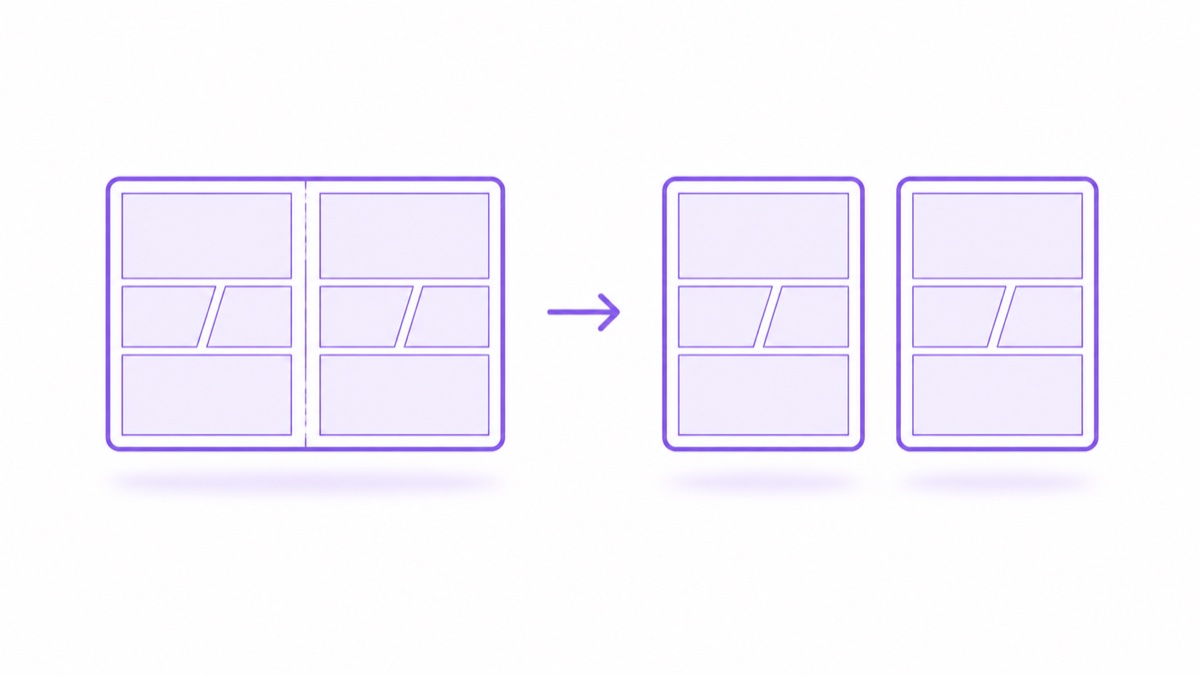
- Two pages connected together (one image containing a left and right page) → Use "Split Double Pages" to automatically cut them into two separate pages and display them in the correct order
- One image spanning two pages (a double-page spread cut in half) → Use "Merge Next Page" to combine two images back into one complete horizontal spread
Manga Capsule has both features. Here's how each works.
Scenario 1: Double-page scans, text too small on phone
Many physical book scans are done with the book open flat — one image contains both the left and right page. iPad in landscape mode is barely usable, but iPhone in portrait mode requires constant zooming and panning.
Solution: Enable "Split Double Pages" in Manga Capsule's reading settings. When the app detects a wide image, it automatically cuts it down the middle and splits it into two single pages; for Japanese manga, it displays the right page first then the left page in right→left order, so the reading order stays correct. Portrait manga reading instantly becomes normal.
Scenario 2: Double-page spreads cut in half
Conversely, many sources come pre-split as single pages, but the iconic moments in manga — the dramatic double-page spreads — get cut in half, losing all their impact when viewed separately.
Solution: Enable "Merge Next Page" while reading. The current page and next page combine into one complete horizontal image. The merged iconic moments can also be long-pressed to save as a single complete image (this was added in version 1.41, great for wallpapers).
By the way: Reading Direction
For splitting and merging to work correctly, the reading direction must be set properly. Quick reference:
| Content Type | Correct Direction | Notes |
|---|---|---|
| Japanese manga | Right → Left | Right-bound book tradition |
| Western/Chinese page comics | Left → Right | Left-bound |
| Webtoons/Korean manhwa | Top → Bottom | Continuous scroll, see seamless webtoon solution |
Manga Capsule defaults to Japanese manga direction, but can be set per book, and each book remembers its own direction.
FAQ
Q: Will double-page splitting accidentally split double-page spreads too? A: Double-page spreads are originally one continuous image, and splitting them would indeed ruin the visual experience. For books like this, it's recommended to disable splitting entirely and use landscape double-page mode; or temporarily turn it off when you encounter large spreads. Settings take effect immediately.
Q: Do I need to preprocess files on my computer (e.g., batch cropping with ImageMagick)? A: No need. Both splitting and merging happen at the rendering layer — the original files aren't modified. Of course, resources you've already pre-processed work perfectly fine too.
Q: Can double-page scanned PDFs be split? A: Yes, both PDF and image archives (ZIP/CBZ/CBR) are supported.
Q: What's the most comfortable config for reading Japanese manga on iPhone in portrait mode? A: Enable double-page split + enable crop white margins + right→left direction. Both screen utilization and reading order are correct.
📥 Download Manga Capsule on the App Store
🔗 Related reading: