Organize a NAS Manga Library for iPad Reading

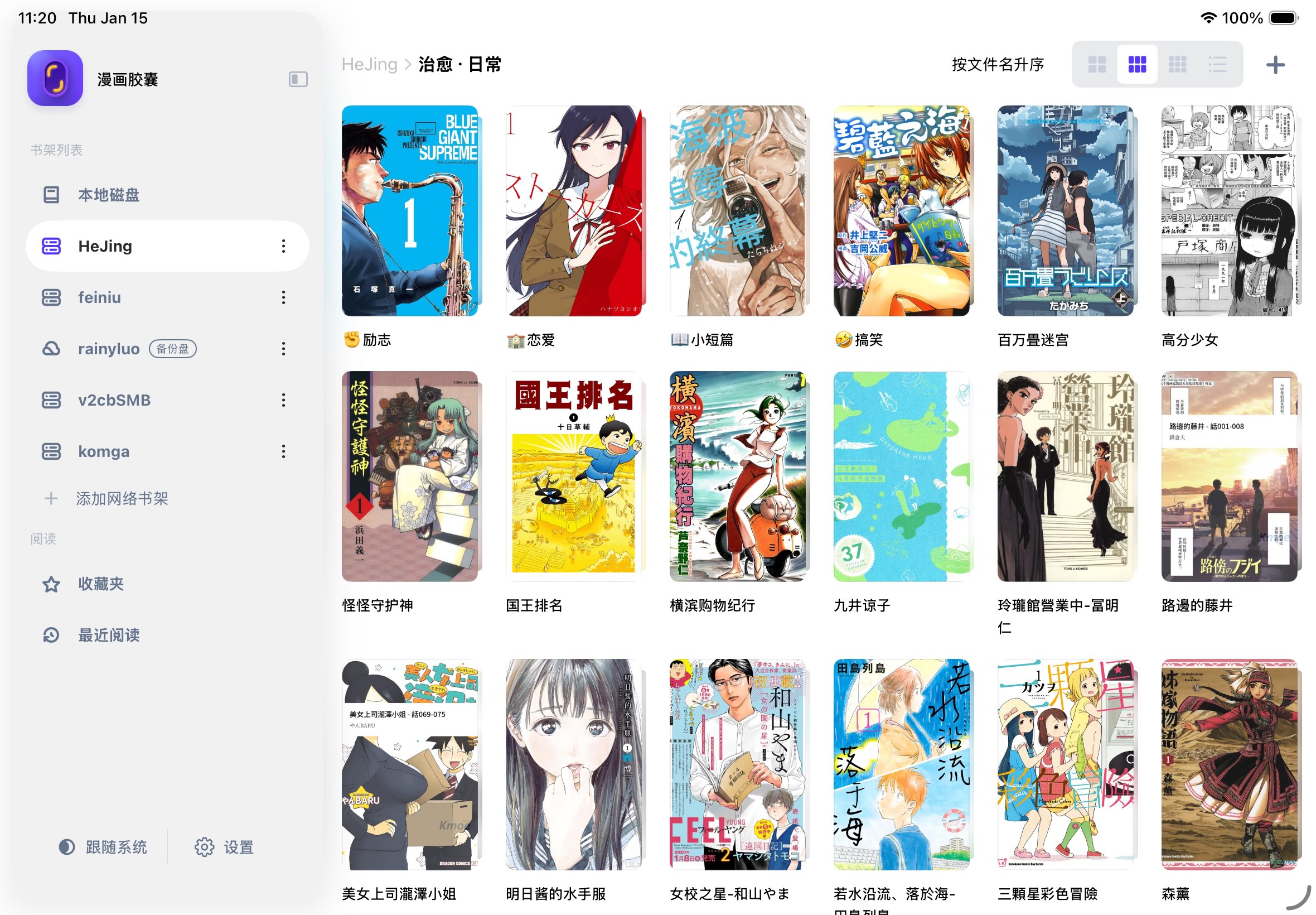
A NAS comic library has two parts: how you organize the files, and how your iPad reaches them. Plain folders shared over SMB or WebDAV are a useful starting point. A catalog server such as Komga is an optional layer for library management, not a requirement for reading every folder.
Updated October 13, 2026 by the Manga Capsule development team. This guide separates those choices and states the reader's format limits. It does not claim that Manga Capsule is the only streaming reader or that all NAS models share the same configuration.
Option 1: organize ordinary shared folders
Keep series in separate folders and volumes in a consistent order. For example:
Comics/
  Example Series/
    Volume 001.cbz
    Volume 002.cbz
  Another Series/
    Volume 001.pdf
Use readable names and keep a separate backup of your originals. A tidy directory makes browsing easier but does not automatically supply metadata, correct page order or cover artwork missing from a file.
Enable SMB or a WebDAV service and grant your reading account access to the comic share. Manga Capsule connects through Add Network Shelf, then lets you choose the directory after connecting. For exact fields and a Synology example, use the NAS setup tutorial.
Option 2: use a Komga catalog
A catalog can give you a managed library instead of a raw folder view. Follow Komga's official installation documentation for your system, storage paths and server access. Container examples need paths appropriate to your NAS; do not copy a Synology volume path onto another system unchanged.
Connect Manga Capsule using its OPDS(Komga) option with the actual catalog endpoint and credentials. The catalog URL is different from an SMB host or WebDAV endpoint. Use the Komga iOS guide and your server's current documentation.
Other OPDS servers can expose different catalog versions and features. Confirm compatibility rather than assuming every server behaves identically or synchronizes reading progress in the same way.
Choose a format for the way you read
CBZ/ZIP is useful for on-demand reading when the archive and source support partial access. RAR/CBR needs local download and extraction in Manga Capsule. Mounted iCloud files also download first; some PDF sources and PDFs requiring local parsing use the download path. DRM-free comic EPUB, MOBI and AZW3 are supported, but format support alone is not a promise of identical behavior across sources.
If you repack your own page images as ZIP/CBZ, verify page order and keep the originals until the new book works. Renaming a RAR to CBZ is not conversion. See the CBZ/CBR tutorial.
Device storage and offline reading
The collection can remain on the NAS without a complete local copy. Caches and downloaded volumes still use device storage, and RAR extraction needs additional room. Download selected books to the local bookshelf for offline use and test with WiFi/cellular off.
Network shelves and streaming require Pro. The free local allowance is five books per week; the app shows monthly, yearly and lifetime purchase options at regional prices.
Remote access comes after local setup
Use a reachable private VPN connection when reading away from home. Tailscale's official NAS guide explains supported platforms. Avoid treating a vendor dashboard relay link as a general-purpose file endpoint. In particular, Synology's WebDAV troubleshooting documentation says QuickConnect URLs are not supported for WebDAV.
Test a typical volume remotely before relying on the setup during travel. A full offline download is useful when connectivity is unreliable.
Pick the reader using your library
Manga Capsule is one option for folder-based network reading and manga layout controls. Keda, Panels and ComicGlass also document network or streaming workflows. Our source-backed reader comparison covers their documented capabilities and explains how to compare your own files without invented timing claims.
Download Manga Capsule · NAS comic reader guide · iPad manga reader guide