Read a Large NAS Comic Library on iPad with On-Demand Loading

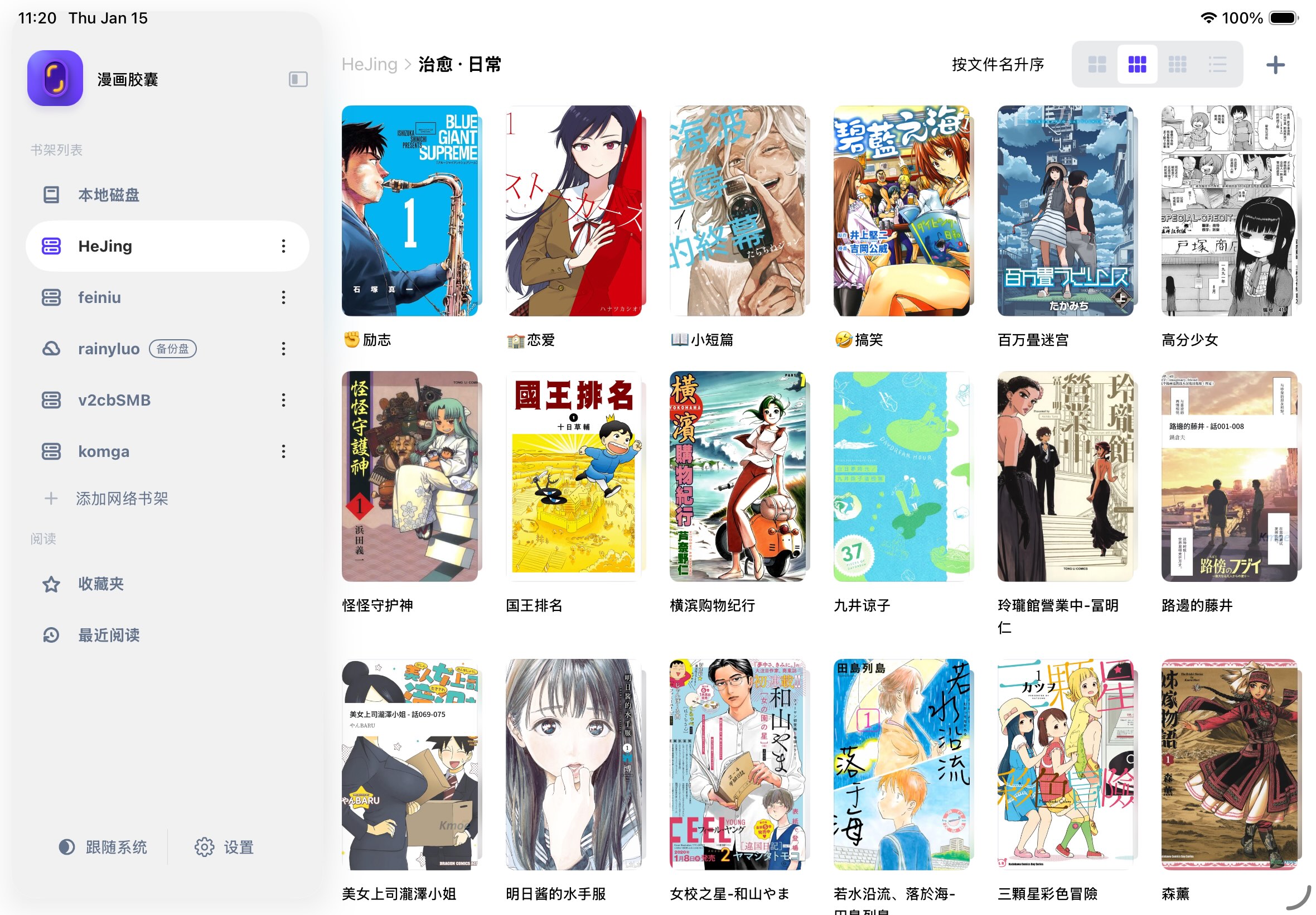
A large comic library can stay on your NAS while you browse its folders from an iPad. You still need space for caches and any downloaded books. Manga Capsule can load page data on demand for compatible archives and sources; it does not make all remote files instant or storage-free.
Updated October 13, 2026 by the Manga Capsule development team. The limits below reflect the current implementation, not a comparative speed test. For the complete connection steps, use the SMB/WebDAV setup tutorial.
What on-demand reading changes
A compatible CBZ/ZIP allows a reader to inspect the archive directory and fetch the page data it needs rather than first importing the entire volume. This is helpful when you want to sample several books in a large folder or have limited device storage. The server must provide usable partial access, and the archive itself must be compatible.
Other readers also offer streaming workflows. Keda documents SMB/WebDAV streaming, Panels describes OPDS streaming, and ComicGlass documents file-share streaming. No controlled comparison here establishes which app is fastest.
| Situation | What to expect in Manga Capsule |
|---|---|
| Compatible CBZ/ZIP on SMB or a suitable WebDAV server | Page data can load on demand |
| CBR/RAR on a remote shelf | Full download, then extraction before reading |
| Mounted iCloud file | Download before reading |
| PDF from some cloud sources, encrypted or unparseable remotely | Local-download path |
| MOBI/AZW3 comic | Supported DRM-free files can use compatible sources; do not assume every file behaves alike |
| Offline reading | Download a complete volume into the local bookshelf |
Start with one test volume
Enable the NAS's file-sharing service and allow your account to read the comic folder. In Manga Capsule, choose Add Network Shelf → SMB, enter the host and credentials, tap Connect, choose a share/directory and Save. WebDAV uses its own URL and port; do not substitute the NAS admin dashboard URL.
Start with a small CBZ. If it opens, try a larger typical volume, then a CBR and PDF if those formats matter to you. Observe download prompts instead of assuming a format can stream. The NAS tutorial explains this flow and troubleshooting in detail.
Keep enough local space
Streaming caches, covers, downloads and extracted archives can all consume storage. Leave room for the largest download-first book you plan to read and its extracted data. If space is tight, reduce offline copies and review the app's cache settings after confirming your originals remain on the NAS.
You do not need to copy the entire NAS collection to the device. That is the practical benefit; zero device storage use is not a supported claim.
Away from home
First make LAN reading work, then configure a reachable private connection such as a VPN. Tailscale's official NAS guide explains platform support. Your NAS upload bandwidth, routing and VPN access rules affect remote reading.
A Synology QuickConnect link is not a generic SMB/WebDAV endpoint. For a slow or intermittent journey, download the volume before leaving and test it offline.
Measure the setup that matters to you
Record first opening and cached reopening separately. Use the same archive, server, WiFi and device for a comparison. Page images, archive layout and latency affect results; there is no fixed opening-time promise for a 300 MB or multi-GB file.
Free local reading allows five books per week. Network shelves and streaming require Pro; see monthly, yearly and lifetime options at your regional price in the app.
Download Manga Capsule · NAS comic reader overview · Comic format guide