After Kindle Exits the Market: How to Continue Reading Your Manga on iPad/iPhone (2026)

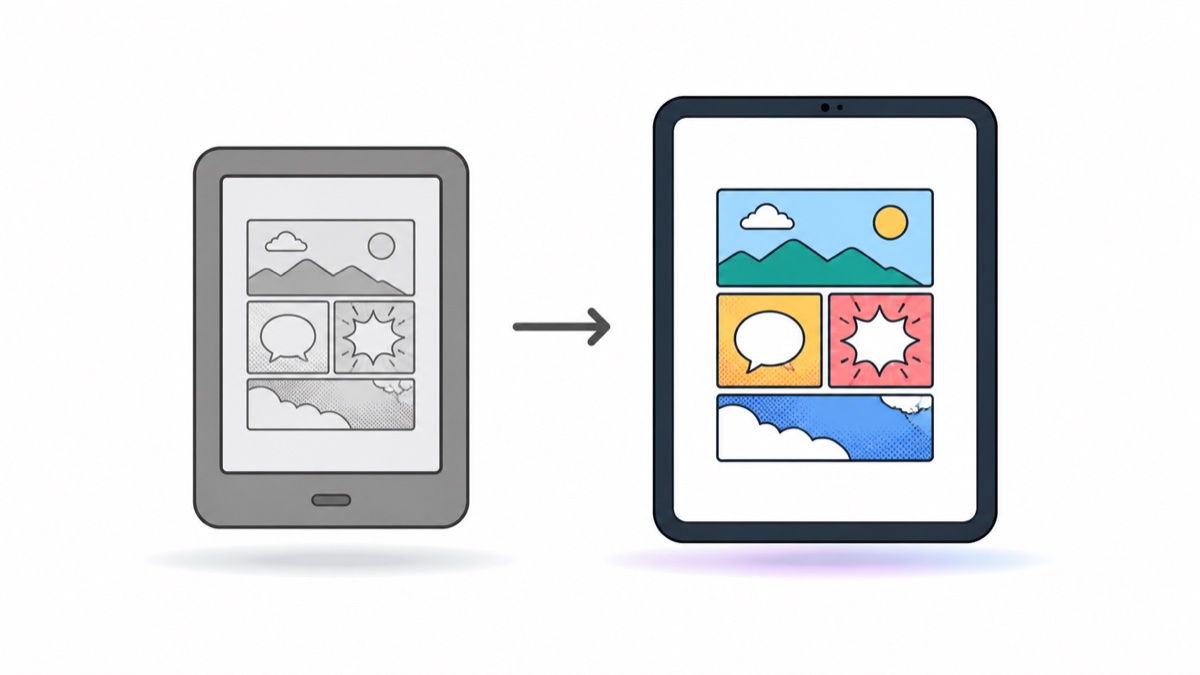
After Kindle Exits the Market: How to Continue Reading Your Manga on iPad/iPhone
The short answer: Your existing MOBI/AZW3 manga files don't need conversion — iOS manga readers that support these formats can open them directly (like Manga Capsule, which reads MOBI/AZW3/EPUB with streaming loading and manga-specific reading optimizations). The only thing you need to handle is getting the files out of your Kindle device or computer.
After the Kindle China store shut down, many people are left with two types of assets: books downloaded to their Kindle devices, and the .mobi/.azw3 manga files they've collected over the years from various sources. As devices age and e-ink screens make reading manga difficult (grayscale + page turn ghosting), moving to iPad is the natural choice.
Step 1: Get the Files Out
Case A: Files are already on your computer/cloud drive (most people) Nothing to do here — skip to Step 2.
Case B: Files are on your Kindle device
Connect to your computer via USB, and Kindle will show up as a flash drive. Your books are in the documents folder — just copy them all out.
Case C: DRM-free personal documents Personal documents sent via Send to Kindle are probably still in your email or on your computer — recovering them is even easier.
Amazon-purchased, DRM-protected books are outside the scope of this article — please continue reading within Amazon's official app.
Step 2: Import to iPad/iPhone
Using Manga Capsule as an example, you have several options:
- WiFi Transfer: Connect your computer and iPad to the same WiFi, open the address shown in the app via browser, and drag entire folders in (hundreds of books at once, with progress display)
- USB Cable: Direct connection — fastest speed
- Cloud/NAS Transfer (recommended for large libraries): Upload files to Aliyun Drive/Baidu Netdisk or NAS, mount in the app, and read directly without importing — with local caches and any downloads still using device storage
Why Not Convert Formats?
Many online tutorials suggest using Calibre to batch-convert MOBI to EPUB or CBZ. But if your reader already supports MOBI/AZW3, this step is completely unnecessary: batch conversion takes a long time, manga MOBI conversions occasionally lose pages or compress quality, and you end up storing duplicate files. If you can read directly, don't convert. Calibre is better suited for library management and metadata organization.
Kindle vs iPad Manga Reading Experience
| Dimension | Kindle (E-ink) | iPad + Manga Reader |
|---|---|---|
| Color | Grayscale | Full color |
| Page turns | Ghosting, slow | Instant |
| Large spreads/cross-page | Small screen struggles | Dual-page mode/spread merge |
| Older resource quality | No processing | On-device AI upscaling |
| Eye comfort | ✅ Strength | Dark mode + brightness control |
E-ink is still unbeatable for text, but for image-heavy content like manga, iPad really is thea good fit.
FAQ
Q: Can iOS really open AZW3 directly? A: Yes. Manga Capsule supports direct reading of MOBI/AZW3/EPUB without Calibre preprocessing.
Q: What's the fastest way to batch migrate hundreds of books? A: Drag everything into a folder on NAS or cloud drive, mount that folder in the app — browse the remote folder without importing the whole library. Caches, downloaded files and extracted archives still use local storage.
Q: Most manga on Kindle is Japanese manga — is the reading direction correct? A: Yes, it defaults to right-to-left Japanese manga direction, but can be adjusted per book.
📥 Download Manga Capsule from App Store
🔗 Related Reading: